 AI Chat Toolsfor Chrome, Firefox & Edge
How to organise ChatGPT chats into folders
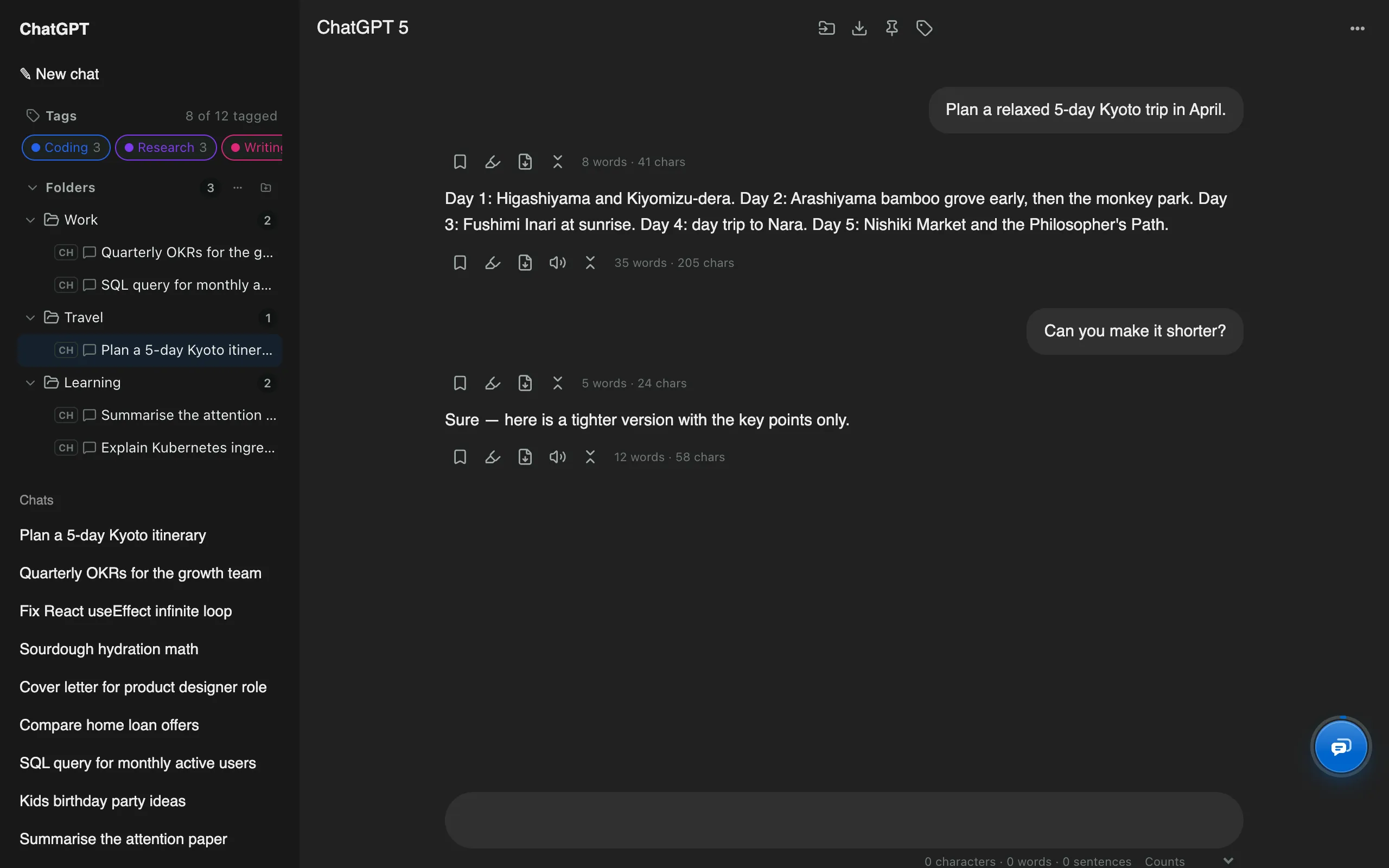
Short answerChatGPT's built-in option is Projects: create a project in the sidebar and move chats into it. For nested folders, one chat in several folders, or folders that also hold Claude and Gemini chats, AI Chat Tools adds a Folders section to the sidebar where you drag chats in.
How do I use ChatGPT Projects?
- Click New project in the ChatGPT sidebar and name it.
- Drag chats into the project, or start new chats inside it.
Projects suit ongoing work that needs shared files or instructions.
How do I add folders to ChatGPT?
- Install AI Chat Tools and open chatgpt.com; a Folders section appears in the sidebar.
- Click the new folder icon, type a name and press Enter.
- Drag a chat from ChatGPT’s list onto the folder, or open the chat and click the folder icon in the top bar. Hold Alt while dropping to move instead of add.
Projects or folders?
| ChatGPT Projects | AI Chat Tools folders | |
|---|---|---|
| Nested subfolders | No | Yes |
| One chat in several places | No | Yes |
| Claude, Gemini and Grok chats | No | Yes |
| Shared files and instructions | Yes | No |
How do I keep the chat list clean?
Turn on Hide filed chats from the site’s list in Settings so ChatGPT’s list only shows chats you haven’t organised. Clear out the rest with bulk delete.